Update Your Billing Address on File
How to update your billing address on file
You can update the billing address that appears on your invoice before downloading the invoice PDF.
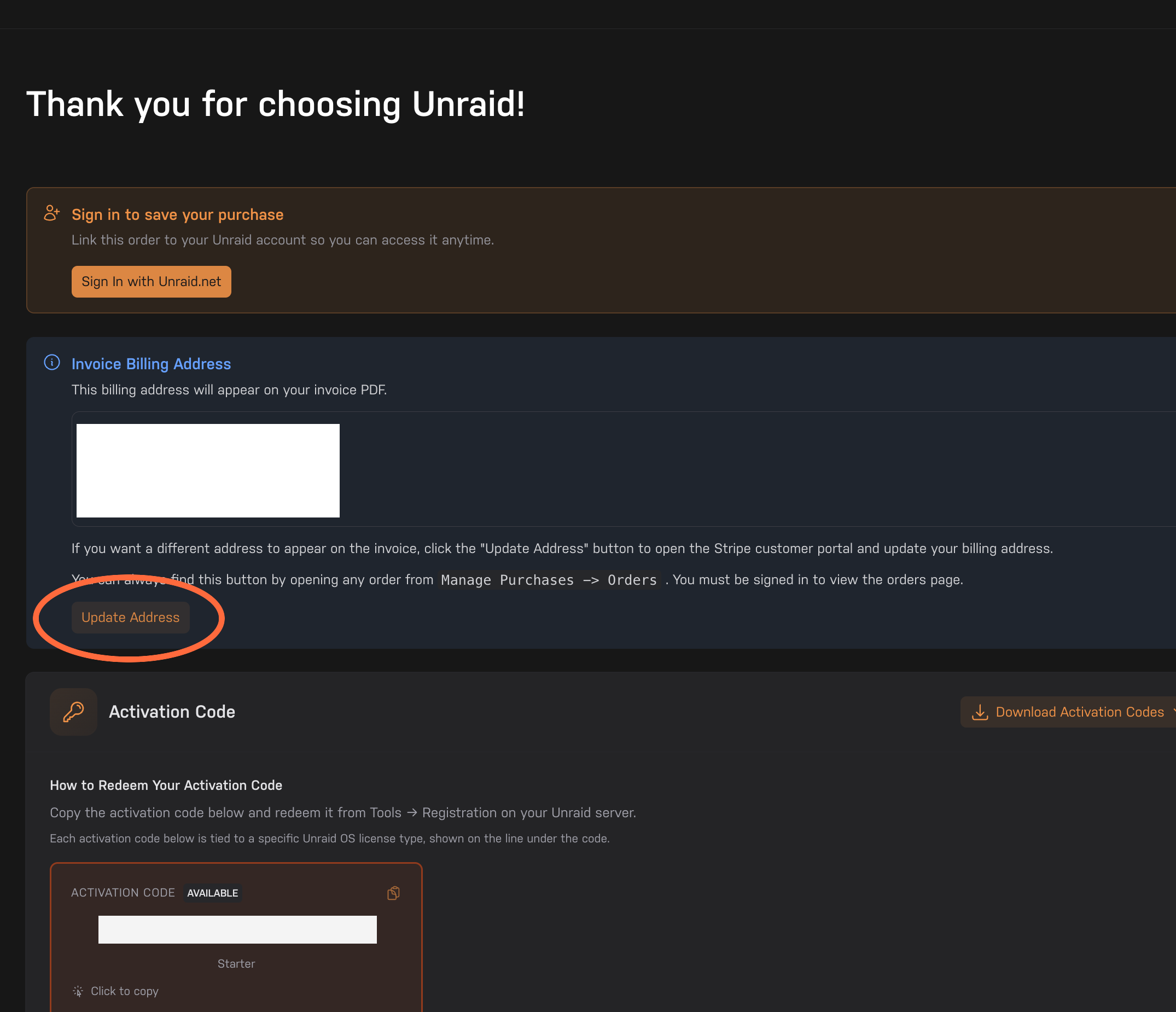
- On the order confirmation page, click Update Address in the Invoice Billing Address section.
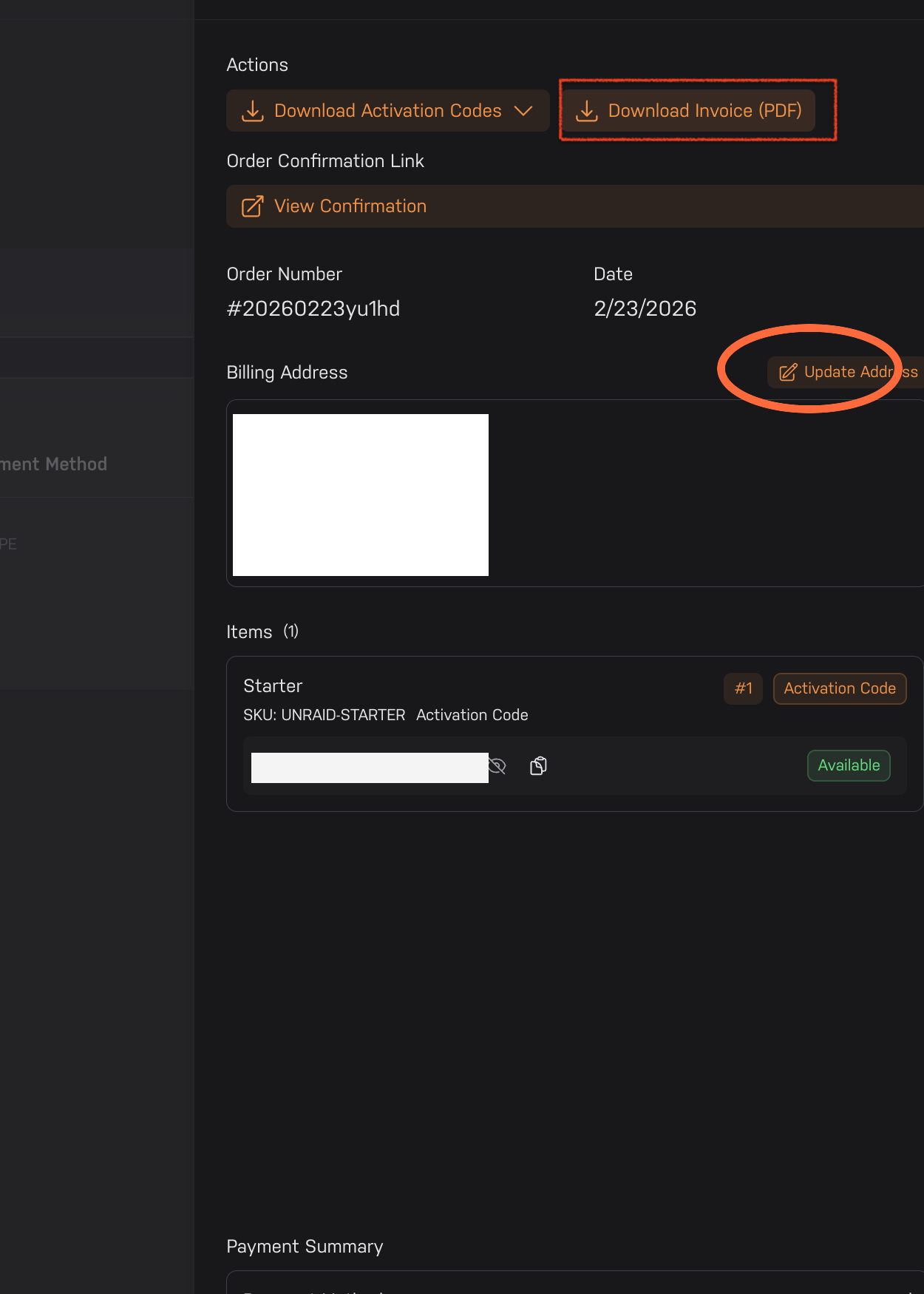
- If you already left that page, sign in to your Unraid account, go to Manage Purchases -> Orders, open the order, and click Update Address.
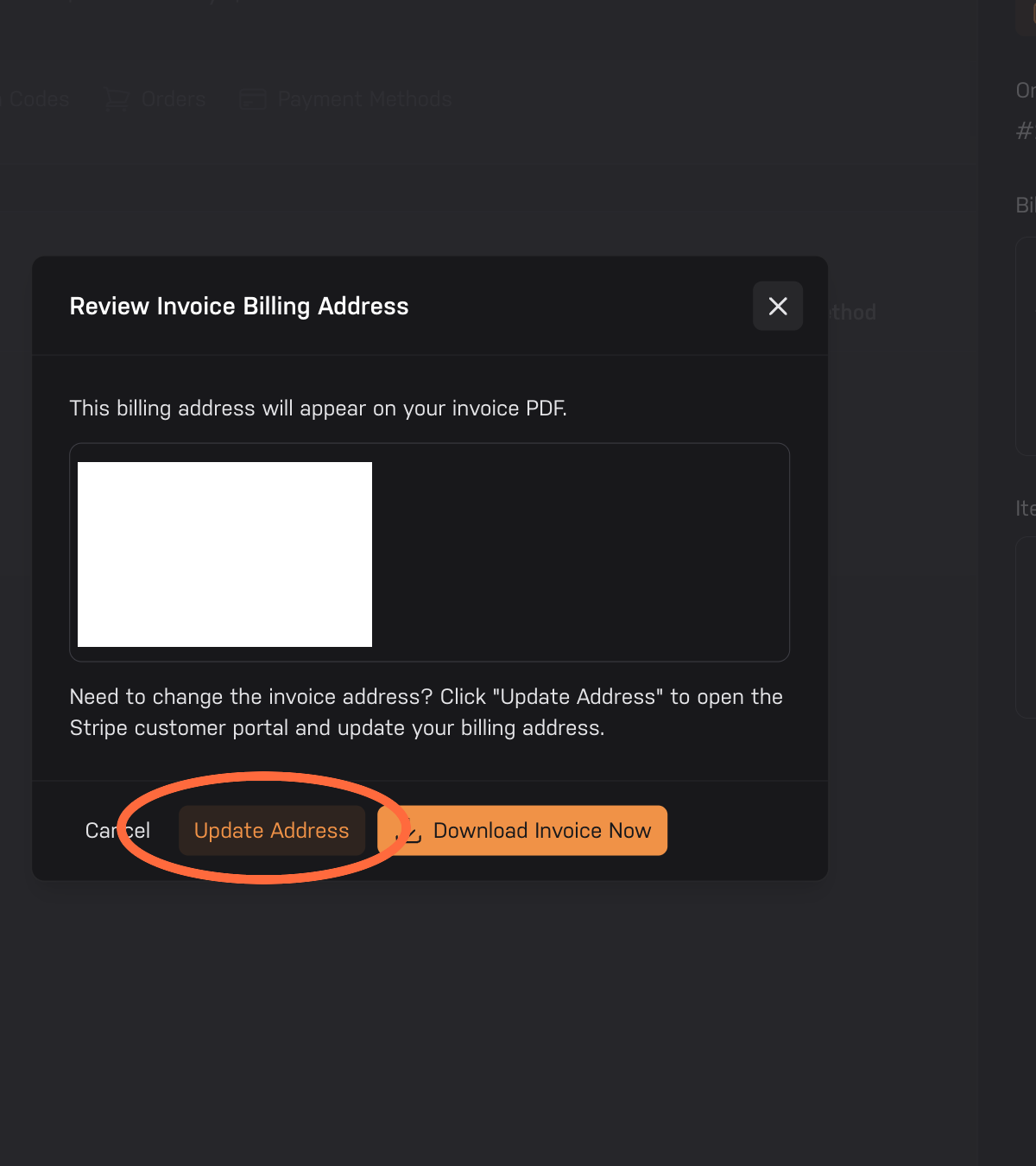
- Review the invoice billing address preview.
- If the address is correct, click Download Invoice Now.
- If the address needs to change, click Update Address to open the Stripe customer portal, update your billing address, save it, and then download the invoice again.
What happens next?
After you save your changes in Stripe, the invoice PDF you download will use the updated billing address.
If you need help
- Make sure you're signed in to the same account used for the purchase.
- If you do not see the order in Manage Purchases -> Orders, confirm you're using the correct account.
- Contact support if you still cannot access the order or update the address.